
Reinstalling your OS
Rebuilding the server from the client area, the systems on offer including Proxmox VE, and the steps that follow a fresh image.
OS reinstall from the client area is part of every dedicated server, at no extra cost and without a maintenance request. It is the right tool when you want a different distribution, when you are handing the machine to someone else, or when the system is in a state you would rather not debug.
Careful
A reinstall wipes every drive in the machine, including data disks and any array. There is no undo, and we keep no copy. Take your backups off the server first.
Before you start
- Copy out anything you need: data, configuration files,
/etc, database dumps, TLS keys. - Write down what the machine does. The fastest rebuild is the one where you already know which services to reinstall.
- Check which IP addresses are attached to the service. Additional addresses have to be reconfigured on the fresh system.
Open the form
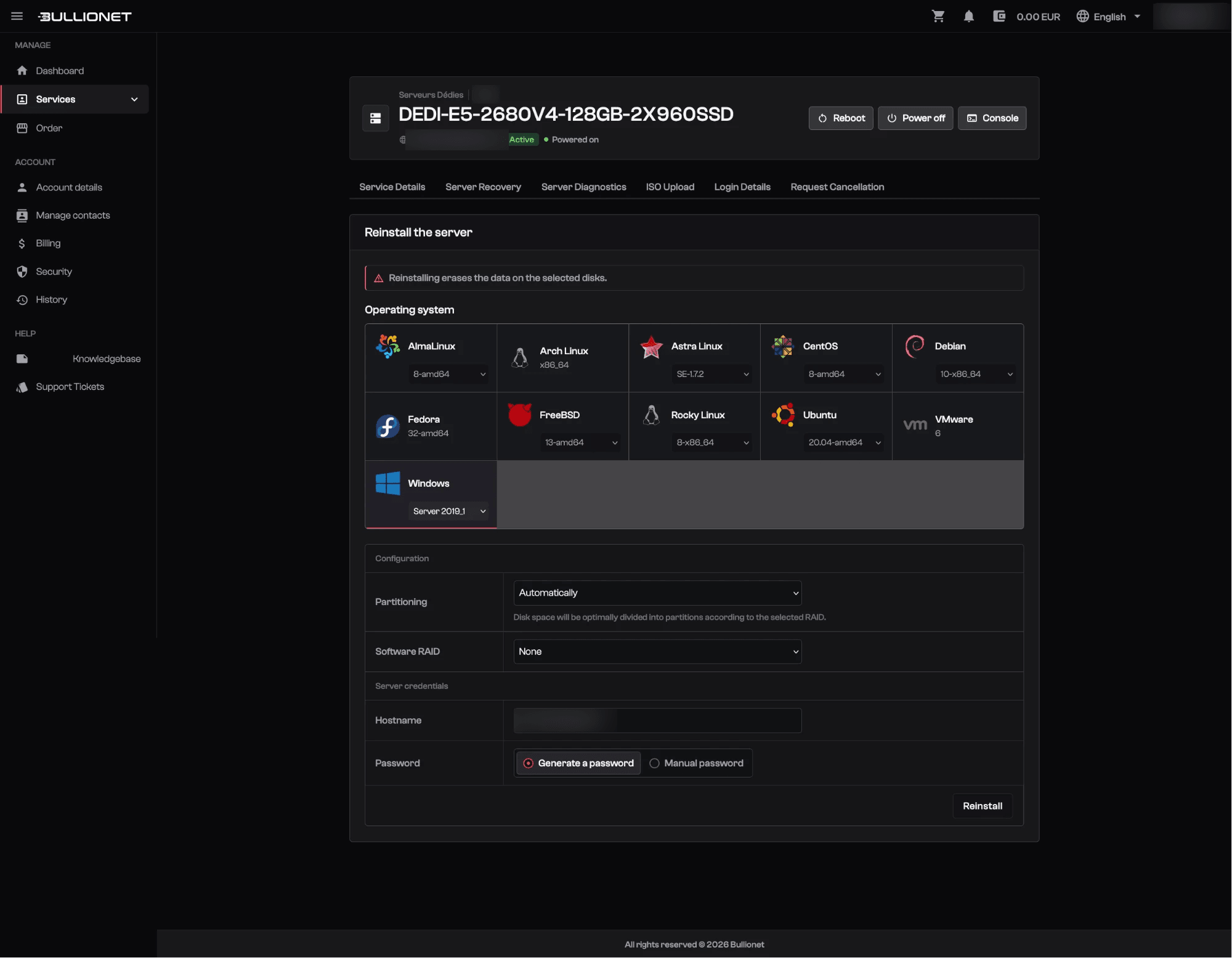
Log in to the client area, open Services, then your server. The reinstall form is on the service page, under Reinstall the server.
Pick a system
Each tile carries a version list. Pick the tile, then the version, and note that a tile opens on one version rather than on its newest.
One system hides behind another: Proxmox VE is the Debian tile, version PVE 9. There is no Proxmox tile to look for.
Every system on offer has its own page, with what it gives you on the first boot and the trap that catches people on it: operating systems.
Fill in the configuration
| Field | What to put |
|---|---|
| Partitioning | Automatically unless you have a reason. Disk space is then divided according to the RAID you pick |
| Software RAID | None for a single volume, or the level you want across the drives |
| Hostname | The name the machine carries, for instance web-01.example.com |
| Password | Generate a password produces a strong one and shows it to you, Manual password lets you set your own |
Then confirm. The server reboots into the installer and works on its own. Watch it on the console if you want, there is nothing to do there.
A system we do not offer is still installable: upload its image from the ISO Upload tab and run the installer over the console.
After the reinstall
The machine now presents a different SSH host key. Your client will refuse to connect until you drop the old one:
ssh-keygen -R 203.0.113.10
ssh root@203.0.113.10
Then run the same pass as on a new machine:
- Create your user and disable password logins.
- Reapply the firewall rules.
- Reconfigure additional IP addresses, which do not survive the wipe.
- Re-declare reverse DNS if you changed the hostname.
- Reinstall your applications.
Installing Windows follows its own path, and you connect to it over Remote Desktop rather than SSH: see installing Windows.
Good to know
Keep the rebuild in a script. A server you can reinstall in twenty minutes is a server you can afford to reinstall, which changes what an incident costs you.
Reviewed on September 14, 2026