
The IPMI and BMC console
Opening the screen of your server from the client area, what you can do in it, and how to mount an ISO or boot a rescue system.
The console shows you the server's screen, exactly as a monitor plugged into it would. It goes through the BMC, a small controller on the motherboard with its own network interface and its own power, which is why it keeps answering when the operating system does not.
Every dedicated server has one, at no extra cost.
Opening it
In the client area, open Services, then your server. The Console button sits at the top of the page, next to Reboot and Power off. A second entry, Open console, is in the server information block further down. Both open the same view, in a new tab.
Give it a few seconds: the console is a video stream, it starts slower than a web page.
What it is for
- Watching a boot. The messages that scroll before the login prompt are only visible here.
- A machine that no longer answers on the network. A login prompt on the console means the system is up and the problem is the network, a firewall rule or a service. Nothing on screen means the problem is lower down.
- A firewall rule that locked you out. You are inside the machine, so no rule blocks you. Fix the rule, then go back to SSH.
- The BIOS or UEFI setup, reachable by pressing the right key during the power-on sequence.
- An installation from an ISO you provide, see below.
Typing in the console
The console sends raw keystrokes to the machine, which makes it less forgiving than a terminal:
- The keyboard layout is the one the server expects, usually US QWERTY before the system is configured.
aandqswap on an AZERTY keyboard, and the digits need the Shift key. - Do not type blind. The display refreshes with a delay, wait for the character to appear before typing the next one.
- Copy and paste do not cross into the console. Long passwords are typed by hand, which is one more reason to install a key.
- Ctrl+Alt+Del and the power actions are in the console's own menu, not on your keyboard.
Good to know
Keep the console tab open while you work on the machine over SSH. If a command cuts your own connection, the console is already there and you see what happened instead of guessing.
Booting an ISO
The ISO Upload tab on the service page lists the images available to the machine, with their size, their status and the date they expire. Upload ISO adds one of your own, for an installer we do not offer or for a repair tool.
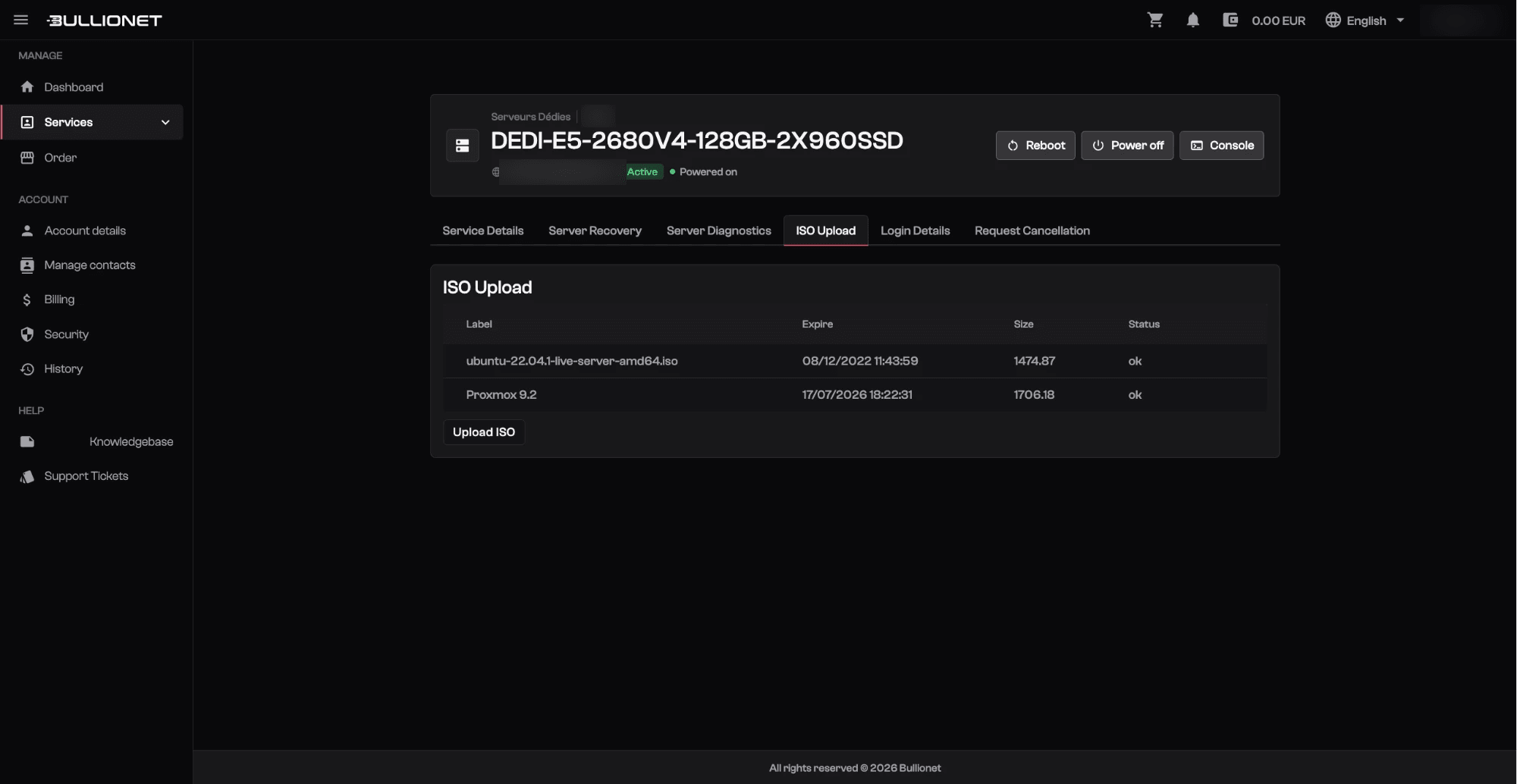
Once the image is uploaded, boot the machine on it from the console and follow the installer on screen. Plan for it: an installation over the console needs your attention from beginning to end.
For the mainstream systems, going through the reinstall from the client area is much faster and does not need the console at all.
Booting a rescue system
The Server Recovery tab boots the server into a small system held in memory, with your drives left untouched and unmounted. Pick a recovery template, set a password, submit, and the machine restarts into it.
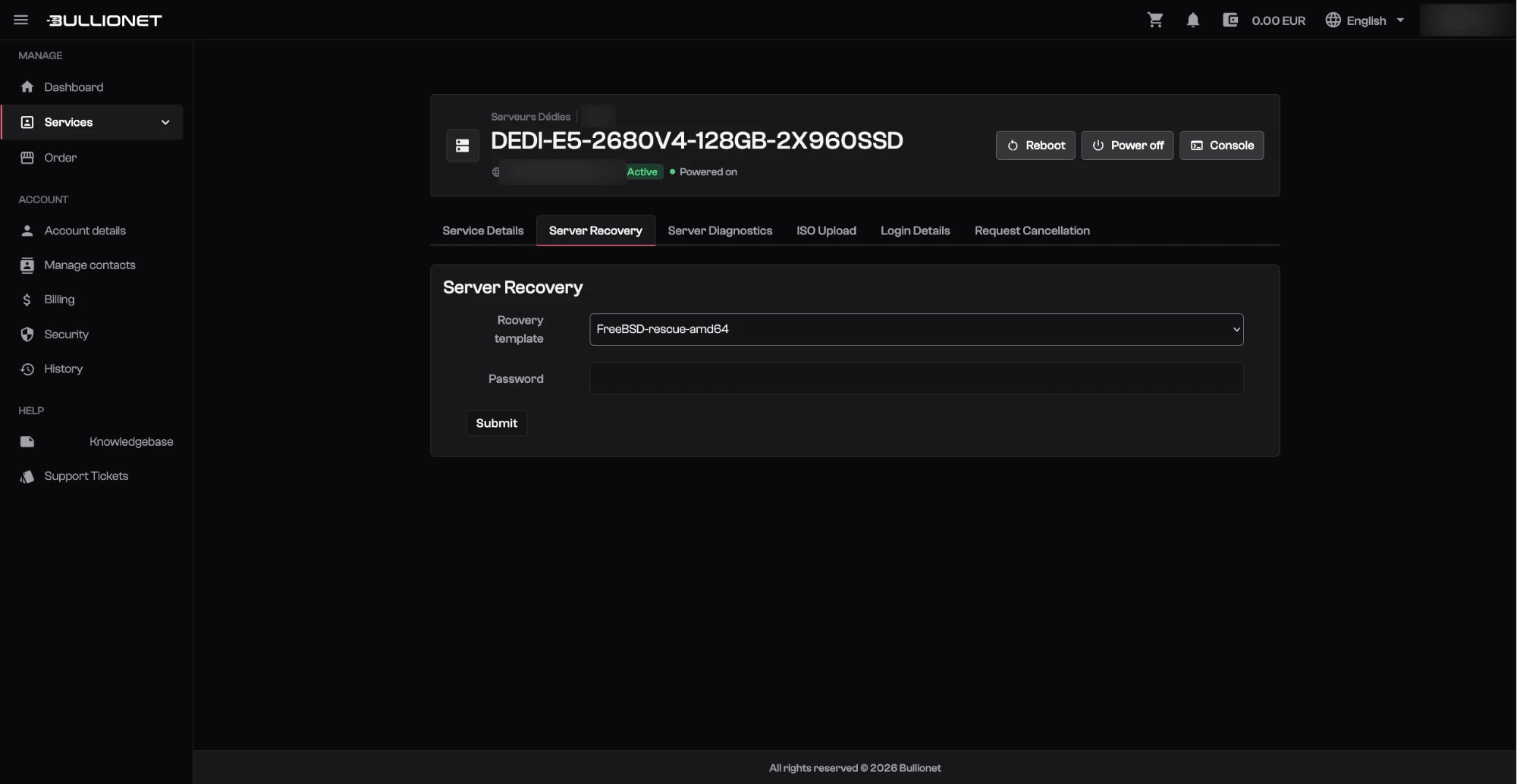
You then connect over SSH, mount your drives and repair what needs repairing:
lsblk                          # identify the root partition
mount /dev/sda2 /mnt
mount --bind /dev  /mnt/dev
mount --bind /proc /mnt/proc
mount --bind /sys  /mnt/sys
chroot /mnt /bin/bash
From that chroot, package tooling, grub-install and edits under /etc behave as on the running system. The full procedure is in IPMI and rescue.
Power actions
Reboot and Power off cut and restore the power, like the button on the front of the machine. Use them when the system no longer answers. When it does, reboot over SSH is cleaner: services stop, filesystems unmount, nothing is left half written.
Careful
A power cycle erases the evidence. Read the console before restarting a machine that misbehaves: a kernel panic, a full disk or a failed mount are all written on that screen and nowhere else.
Security
Whoever opens the console has the machine. The access is tied to your panel account, so that account deserves a password of its own and, where it is offered, a second factor. It is not the root password of the server, and it is not your client area password either.
When the console is not enough
A machine that does not reach the BIOS, a drive that disappeared from the array, a power supply that stopped: those need hands in the datacenter. Open a ticket with the service identifier, what the console shows, and when it started.
Reviewed on September 14, 2026